When you export your portfolio from Kubera, you gain access to detailed financial data that can be used for tax preparation, deeper analysis, or privacy-focused storage. Kubera offers three export formats: CSV/Excel for spreadsheets, Markdown for AI tools, and JSON via API for automation. Each serves specific purposes, from simplifying tax planning and calculations to enabling insights through AI or custom software.
Key Takeaways:
- Export Formats:
CSV/Excel: Ideal for tax planning and custom analysis in tools like Excel or Google Sheets.
- Markdown: Designed for AI tools (e.g., ChatGPT, Claude) to analyze your portfolio.
- JSON via API: For developers automating data workflows.
- Preparation Tips: Verify synced data, review reports, and ensure accuracy before exporting.
- Security Advice: Store files securely, use encryption, and limit access when sharing data.
Exporting your portfolio gives you more control over your financial information, whether for analysis, tax purposes, or privacy. Choose the format that matches your needs and keep your data up-to-date for the best results.
Kubera Portfolio Export Formats Explained
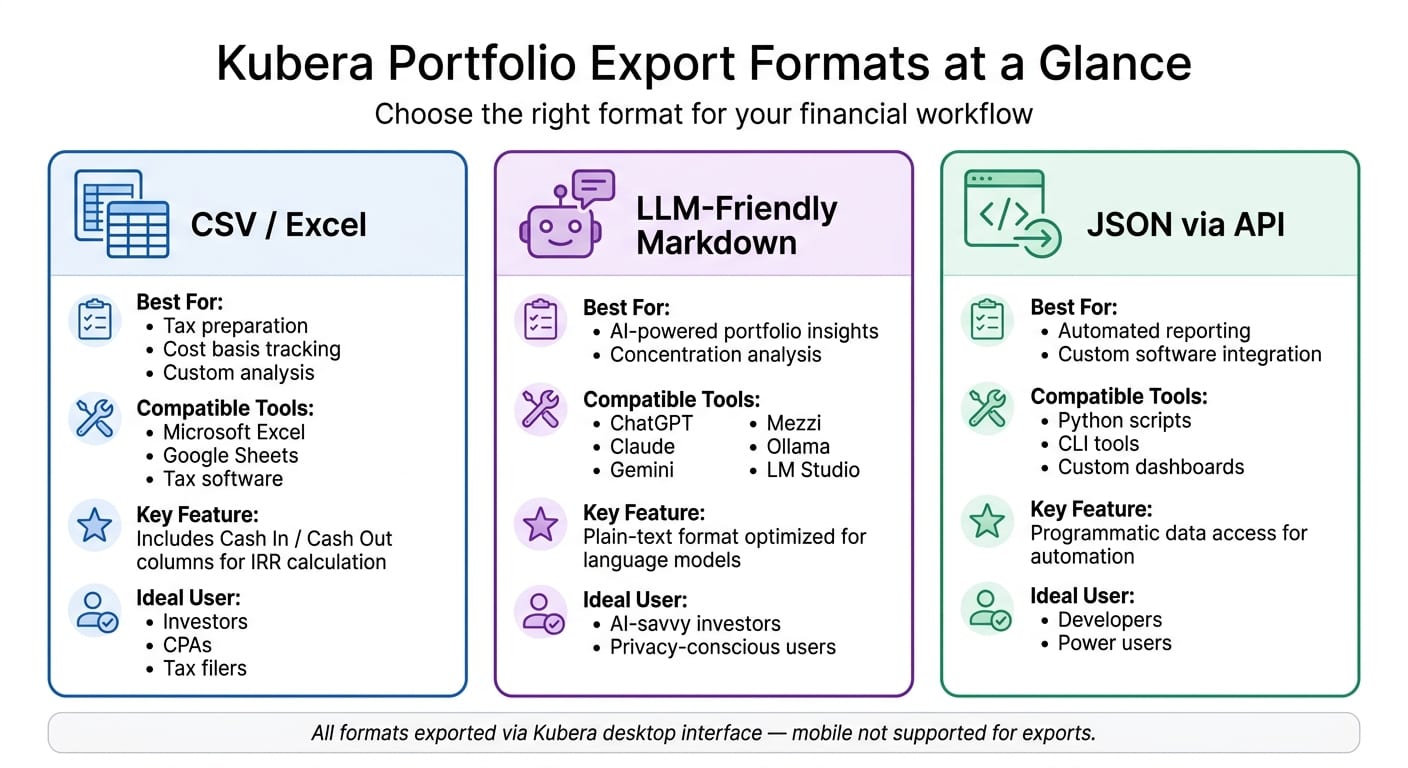
Kubera provides three distinct ways to export your portfolio data, each tailored to specific needs. For those requiring automation, there’s also a JSON export available via API. Below is an overview of these formats and the tools they’re best suited for.
Spreadsheet Exports: Excel and CSV
For financial analysis, CSV and Excel files are the go-to options. Kubera organizes these exports with essential data points like asset name, currency, current value, and price. It also includes cash flow columns labeled "Cash In" and "Cash Out", which track investments, withdrawals, and dividends.
This structure is particularly helpful for U.S. investors who need to calculate their Internal Rate of Return (IRR) or prepare cost basis records for filing Schedule D with their federal tax return. By importing the CSV into Excel or Google Sheets, you can create pivot tables, apply formulas, and share a polished summary with your CPA - no manual data entry required.
For those interested in leveraging AI insights, Kubera offers another export format designed specifically for language models.
LLM-Friendly Markdown for AI Tools
The markdown export is tailored for AI assistants, formatting your portfolio data as plain text for easy interpretation by tools like ChatGPT or Mezzi. This option can be accessed through the "Share" menu on Kubera's dashboard.
As explained in Kubera’s Help Center:
Alternatively, you can export an LLM-friendly markdown version of your portfolio data and use it with any AI Assistant whenever you need.
This format can help users gain insights into asset allocation, tax strategies, or retirement planning. Additionally, for those who prefer to keep sensitive data offline, the markdown file is compatible with local AI tools like Ollama or LM Studio, which operate entirely on your device.
JSON via API
For developers or users seeking automation, JSON exports via Kubera's API allow for seamless integration into custom software. With Python scripts, CLI tools, or personalized dashboards, you can programmatically pull data and streamline reporting processes to fit your unique requirements.
How to Export Your Portfolio from Kubera: Step-by-Step
Before You Export: Syncing and Reviewing Your Data
Before exporting, double-check that your portfolio data is fully up to date. Kubera generates static snapshots of your portfolio, reflecting the exact state of your account at the time of export. If any brokerage connections haven't synced recently, you might end up with outdated information.
To ensure accuracy, open the Recap report and verify that your total net worth and asset allocation are current. Next, review the Top Movers report to identify any discrepancies - these could indicate sync issues rather than market fluctuations. For manually entered assets like real estate or private equity, confirm that the values and prices are accurate, as Kubera doesn’t automatically update these fields.
Additionally, visit Settings > Security > Connected Apps & Services to review third-party tools with access to your account. Revoke access for any tools you no longer use to safeguard your data before exporting. If you're preparing data for U.S. tax purposes, make sure your portfolio's base currency is set to USD, as Kubera formats exports based on the selected base currency.
By ensuring all data is accurate and secure, your export will be ready for its intended purpose, whether that’s detailed analysis in a spreadsheet or use with AI tools.
How to Export Data to Excel or CSV
Exporting your portfolio to a spreadsheet format is simple, but it must be done through Kubera's desktop interface - this feature isn’t available on mobile.
- Step 1: Open the Share menu in the header of the desktop interface.
- Step 2: Choose the export format - Excel or CSV.
- Step 3: Save the file to a secure location on your computer.
The exported file includes essential data columns such as asset name, currency, value, price, Cash In, and Cash Out. These details are particularly useful for financial analysis and tax preparation. If your portfolio changes after exporting, repeat the process to generate a fresh file.
How to Export Data as LLM-Friendly Markdown
If you’re planning to use AI tools for portfolio analysis, Kubera offers a markdown export option. This format is optimized for AI tools and provides plain-text data.
- Step 1: Open Kubera on a desktop browser and click the Share icon in the header.
- Step 2: Select the "Data for AI Assistants" option to download the markdown file.
- Step 3: Upload the file to your preferred AI tool, such as ChatGPT, Claude, Gemini, or Mezzi. For offline analysis, tools like Ollama or LM Studio are also compatible.
Once uploaded, you can ask your AI tool questions like “Where am I overly concentrated?” or “Summarize my assets and liabilities.” However, remember that the exported markdown file reflects a single moment in time. If your portfolio changes, export a new file before your next AI session to ensure accuracy.
Best Practices for Managing Exported Portfolio Data
Keeping Your Exported Data Accurate
To keep your exported data useful, make it a habit to re-export regularly. Since Kubera generates static snapshots, any changes to your portfolio aren’t reflected in older exports. Re-exporting monthly or after major trades or rebalancing with AI ensures your data stays up-to-date.
When saving files, use the YYYY-MM-DD naming format (e.g., portfolio-2026-06-02.csv) to make sorting by date easier. Also, ensure that asset names in your file match exactly with those in Kubera to avoid duplication issues during imports.
Formatting Data for U.S.-Based Analysis
Proper formatting is essential for smooth analysis, especially when aligning with U.S. standards. Kubera’s exports default to USD as the base currency if your account is configured correctly, but it’s a good idea to verify this before sharing the file with a tax professional or importing it into a spreadsheet. For U.S.-standard formatting:
- Dollar amounts should include the $ symbol.
- Use commas as thousands separators (e.g., $1,250,000.00).
- Periods should serve as decimal points.
"CSV is the most portable format and is supported by virtually every portfolio tracker, spreadsheet app, and analysis tool." - Portfolio Genius
CSV files are generally a better choice than Excel if you need compatibility across multiple tools. They work seamlessly with platforms like Excel, Google Sheets, and most financial analysis software, avoiding potential format issues.
Storing Exported Data Securely
Even the most accurate and well-formatted data is only valuable if it’s kept secure. Exported portfolio files often include sensitive information, so they should be handled with care. Avoid saving unencrypted CSV files in standard cloud storage (e.g., Dropbox, Google Drive), as a compromised account could expose your financial details. Instead, store them in an encrypted folder on your local drive. On macOS or Linux, you can further secure these files by limiting folder access to your user account.
If you’re using AI tools for analysis but want to avoid cloud-based processing, consider local solutions like Ollama or LM Studio, which keep everything on your own device. When sharing data with a financial advisor or accountant, opt for secure file-sharing methods instead of emailing raw CSV files. For those utilizing Kubera’s API for automatic exports, always use read-only API keys and store credentials in environment variables, never embedding them directly in scripts. These steps help ensure your portfolio data remains both secure and reliable for future financial planning.
Conclusion: Getting More from Your Kubera Export
Exporting your portfolio from Kubera offers more than just a backup - it’s a way to turn raw data into meaningful financial insights. Whether you're gearing up for tax season, reviewing potential concentration risks, or keeping a historical record, exporting your portfolio helps you take a closer look at your financial picture.
Choose the export format that aligns with your needs, whether it’s for spreadsheet analysis, AI-driven insights, or tracking historical trends.
Once you have your export, tools like Mezzi can take your analysis to the next level. With your exported data, Mezzi may help identify tax-saving opportunities, highlight wash sale risks, and point out overlapping holdings - offering insights comparable to what some advisors might charge thousands for annually.
Kubera provides the data, but its real value shines when you actively engage with it.
FAQs
Which export format should I use for my goal?
Choose the right export format to match your needs:
- Markdown: Ideal for AI tools such as ChatGPT, Claude, or Gemini. Access this option under the Share menu.
- JSON: Best for technical analysis or custom integrations, providing raw API data.
- CSV: Suited for accounting software or spreadsheets, ensuring compatibility and easy record-keeping.
Each format is tailored to help you use your data effectively.
Why doesn’t my export match my current Kubera totals?
If your exported data doesn't align with your Kubera totals, it might be because the AI chatbot session didn’t successfully connect to your Kubera account. Look for the line "Talked to api.kubera.com" above the response. If you don’t see it, the data wasn’t retrieved from Kubera. To fix this, start a new chat session and reconnect your account to ensure the export includes accurate, up-to-date information.
How can I share an export securely with my CPA?
To share your portfolio securely with your CPA, Kubera offers a read-only link feature. Here's how it works: Open your portfolio, click the Share icon, and choose 'Share a Read-Only Link.' You can tailor the link by selecting what information to include, setting a passcode for added security, and defining an expiration date. This allows your CPA to view the data without needing a login. Plus, you can create multiple links to cater to different requirements.
Disclosures:
- This content is for informational purposes only and does not constitute investment advice or a recommendation to buy or sell any security.
- Past performance is not indicative of future results. No guarantee of future performance or outcomes is implied.
- All links to external sources are provided for reference only.
- Savings and performance examples are hypothetical and for illustrative purposes only. Actual results will vary based on individual circumstances, portfolio composition, market conditions, and fees.
Related Blog Posts
- Mezzi vs Kubera
- Best portfolio tracker for high net worth individuals
- How to Export Your Data from Empower (And Where to Take It)
- How to Leave Fidelity Full View and Take Your Data With You
Choose the right export format to match your needs:
- Markdown: Ideal for AI tools such as ChatGPT, Claude, or Gemini. Access this option under the Share menu.
- JSON: Best for technical analysis or custom integrations, providing raw API data.
- CSV: Suited for accounting software or spreadsheets, ensuring compatibility and easy record-keeping.
Each format is tailored to help you use your data effectively.
If your exported data doesn't align with your Kubera totals, it might be because the AI chatbot session didn’t successfully connect to your Kubera account. Look for the line "Talked to api.kubera.com" above the response. If you don’t see it, the data wasn’t retrieved from Kubera. To fix this, start a new chat session and reconnect your account to ensure the export includes accurate, up-to-date information.
To share your portfolio securely with your CPA, Kubera offers a read-only link feature. Here's how it works: Open your portfolio, click the Share icon, and choose 'Share a Read-Only Link.' You can tailor the link by selecting what information to include, setting a passcode for added security, and defining an expiration date. This allows your CPA to view the data without needing a login. Plus, you can create multiple links to cater to different requirements.